

Account Settings & Security Guide
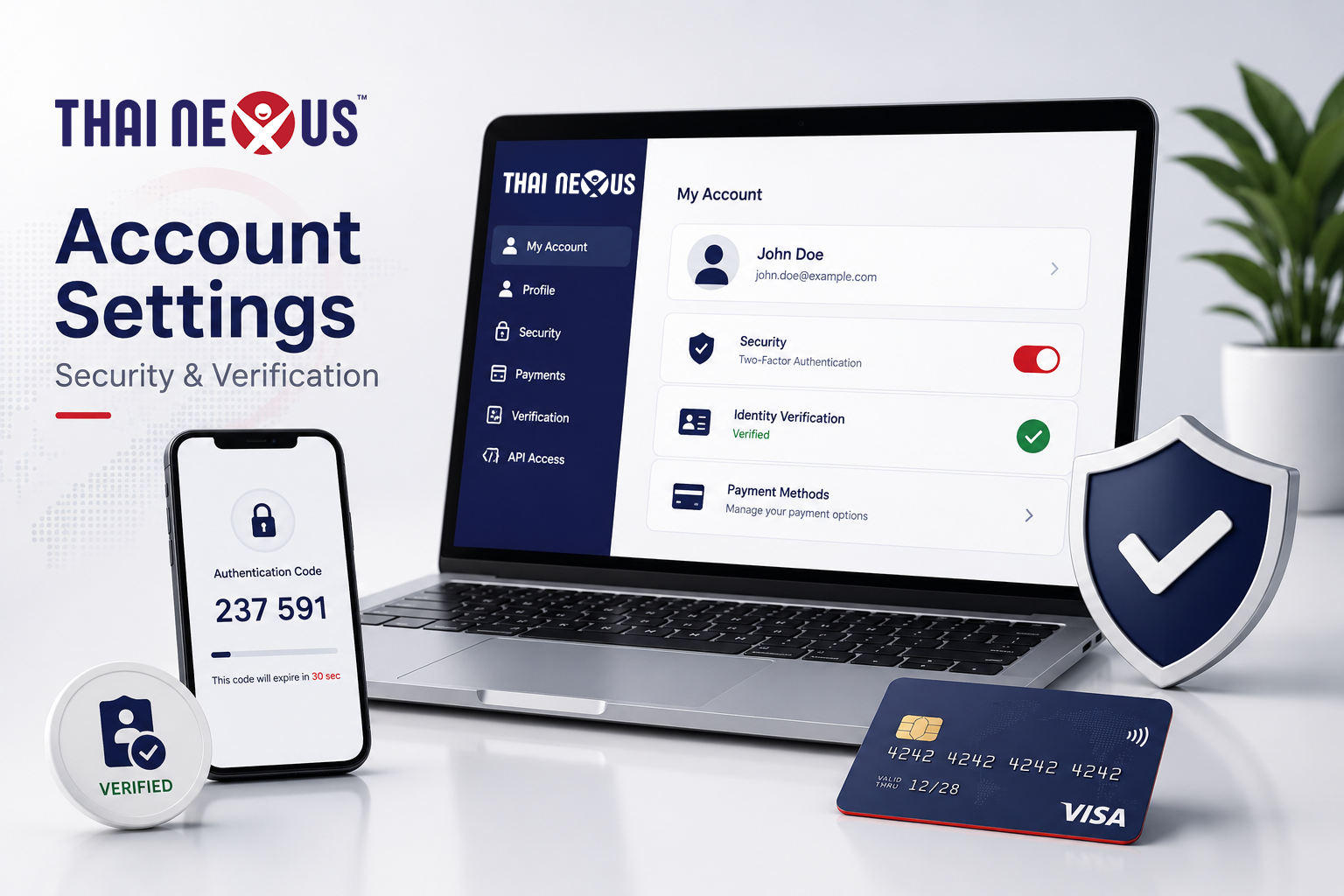
Prerequisites or Before You Begin
Before diving into your account settings and security configurations, ensure you have the following:
| Requirement | Description |
|---|---|
| Registered Account | You must have an active account with Thai Nexus |
| Identity Verification | Complete the identity verification process using Didit. |
| Internet Connection | A stable internet connection to access your account settings. |
| Personal Information | Have your personal information ready for updates (e.g., email, phone number). |
Step-by-Step Guide
Follow these steps to navigate through your account settings and enhance your security:
-
Log In to Your Account
- Navigate to the Thai Nexus App and select the
Log Inbutton. - Enter your credentials and access your account.
- Navigate to the Thai Nexus App and select the
-
Access Account Settings
- Click on the
Accountoption in the top right corner. - Select
Profile Settingsfrom the drop-down list.
- Click on the
-
Update Personal Information
- Under the
Profilesection, edit your personal details as needed. - Click
Saveto confirm your changes.
- Under the
-
Set Up Identity Verification
- Navigate to the
Securitysection. - Follow the prompts to complete your identity verification with Didit.
- Ensure your identification documents are clear and valid.
- Navigate to the
-
Manage Security Settings
- Enable two-factor authentication for added security.
- Select your preferred authentication method (e.g., Google Authenticator or email).
-
Review Payment Methods
- Under the
Paymentssection, check your stored payment options. - Remove any outdated or unnecessary payment methods.
- Under the
-
API Access Management
- If applicable, navigate to the
API Accesssection. - Generate or revoke access tokens as required for third-party integrations.
- If applicable, navigate to the
-
Utilize the Referral Program
- Return to the
Accountmenu and select theReferral Programsection. - Review your current referrals and earnings.
- Return to the
-
Log Out and Test Security
- After making all changes, log out of your account.
- Log in again to ensure changes have been saved and test your updated security settings.
Key Information
Here are some key features and descriptions related to your account settings and security:
| Feature | Description | Example |
|---|---|---|
| Identity Verification | Verifies user identity through Didit service. | Complete verification for enhanced security. |
| Two-Factor Authentication | Adds an extra layer of security when logging in. | Receive a code via Google Authenticator/email for verification. |
| API Access Tokens | Manage third-party app integrations with access tokens. | Generate, view, or revoke tokens. |
| Referral Program | Earn rewards by referring new clients. | Track earnings from referral activities. |
Common Issues or Troubleshooting
If you encounter any issues while managing your account, refer to the table below for solutions:
| Problem | Cause | Solution |
|---|---|---|
| Unable to log in | Incorrect credentials | Reset password or check username/email. |
| Verification failed | Invalid documents | Ensure documents are clear and up-to-date. |
| Payment method not saving | Browser issues or session timeout | Clear cache or try a different browser. |
"For optimal security, regularly update your password and review account activity. Always use unique passwords for different platforms.
Related Articles
- Account Verification Process
- Managing Payment Methods Effectively
- Understanding Two-Factor Authentication
- How to Use the Referral Program Efficiently
Was this article helpful?
Share this article